What you’ll see
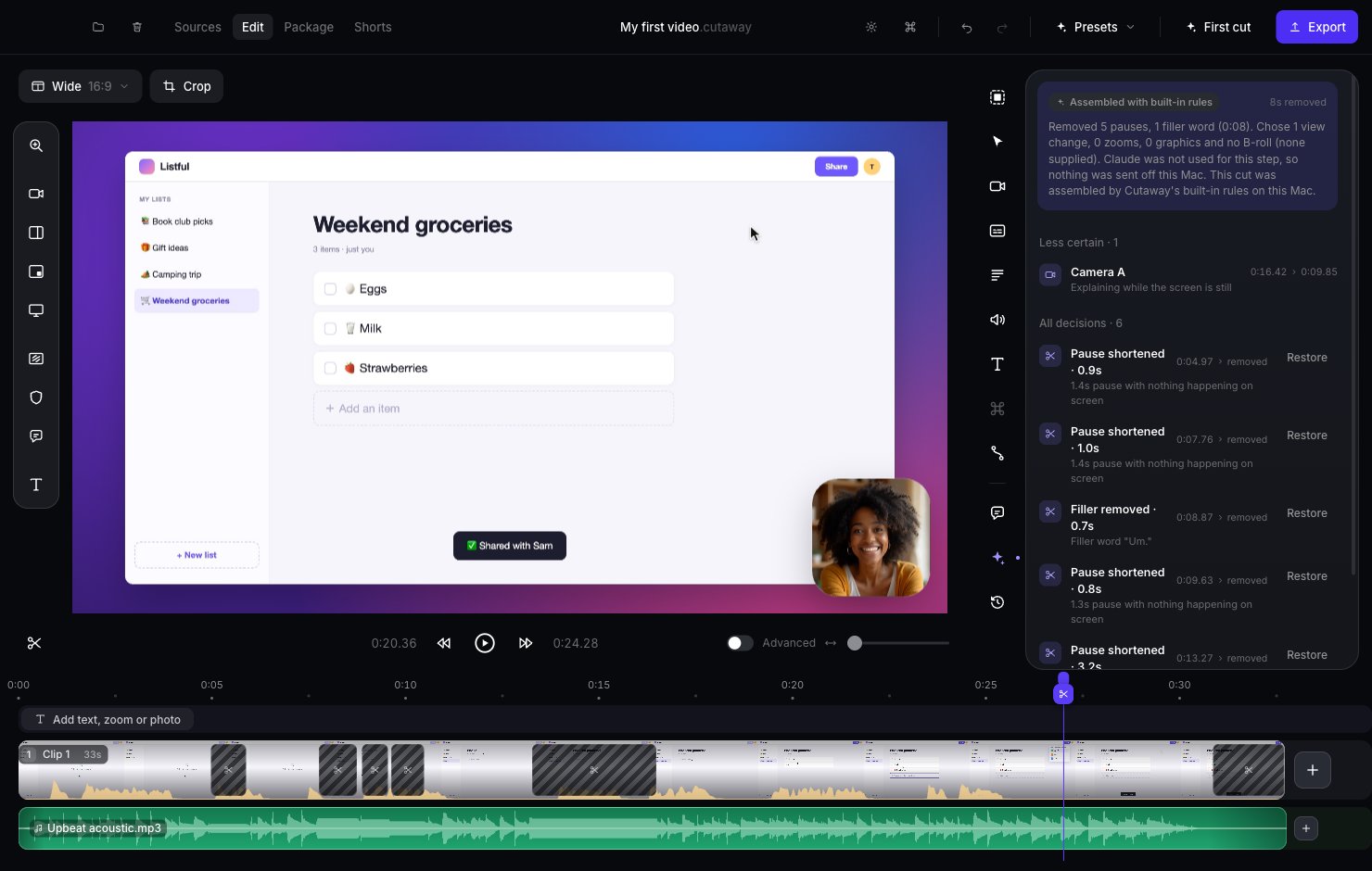
- A summary at the top: who made the first cut (for example Assembled with Claude, Assembled with Codex or Assembled with built-in rules), how many seconds were removed, and a short note about the cut.
- Flagged while recording: moments you flagged while recording. See Flagged moments below.
- Your call: ideas Cutaway won’t apply without you. See Your call below.
- Less certain: changes Cutaway wasn’t sure about. Check these first.
- All decisions: every change, like “Pause shortened” or “Filler removed”, with the time it happened.
Check and undo a change
- Click a change in the list. The playhead jumps there, so you can watch it.
- Don’t like it? Press Restore. That part comes back.
Your call
Some ideas need you to decide, like whether to drop a retake. They appear under Your call, each with a short reason.- Press Play it to watch that moment first.
- Press Apply to make the change. For a retake, the button says Remove retake.
- Press Dismiss to say no. For a retake, the button says Keep both, so both takes stay in.
Flagged moments
If you flagged moments while recording (with Control + Option + F), each one shows up as a Flagged moment card. Click it to jump the playhead there. The first cut keeps flagged moments. If one has since been cut, the card says so. Press Remove to delete the flag. Your video doesn’t change.Animation ideas
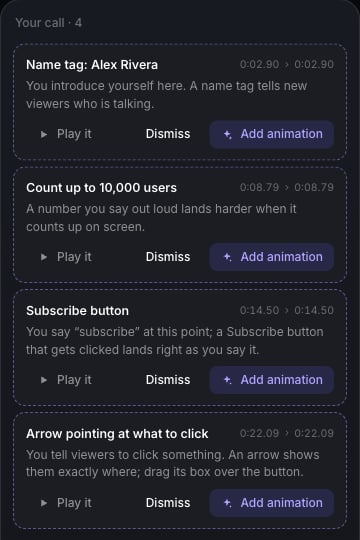
Cutaway also listens to what you say and suggests animations that fit:- “subscribe” → a Subscribe button, timed so the click lands as you say it
- “my name is…” → a Name tag with your name
- a number like “10,000 users” → a Counter that counts up to it
- “step two…” or “next up…” → a Title card
- “click here” → an Arrow (drag its box over what to click)