

What you need
- A Mac with an Apple chip (M1 or newer). To check, click the Apple menu in the top-left corner, then About This Mac. Look for “Chip: Apple M…”.
- macOS 14 (Sonoma) or newer.
Install
1
Get the app
Download Cutaway.dmg from the latest release page.
2
Move it to Applications
Double-click Cutaway.dmg to open it. Then drag Cutaway into your Applications folder.
3
Open it
Double-click Cutaway in Applications. The first time, macOS asks you to confirm. See the next section.
Open Cutaway for the first time
The first time you open Cutaway, macOS says “Apple could not verify Cutaway is free of malware”. This is expected. Cutaway is signed, but it isn’t notarized by Apple yet. Notarizing is an extra check from Apple. You only need to confirm once.1
Click Done
Click Done on the message.
2
Open Privacy & Security
Open System Settings → Privacy & Security. Scroll down until you see a note that Cutaway was blocked.
3
Click Open Anyway
Click Open Anyway next to Cutaway. Then click Open Anyway again to confirm, and enter your password or use Touch ID if asked.
4
You're in
Cutaway opens and you see the Projects screen. From now on it opens normally.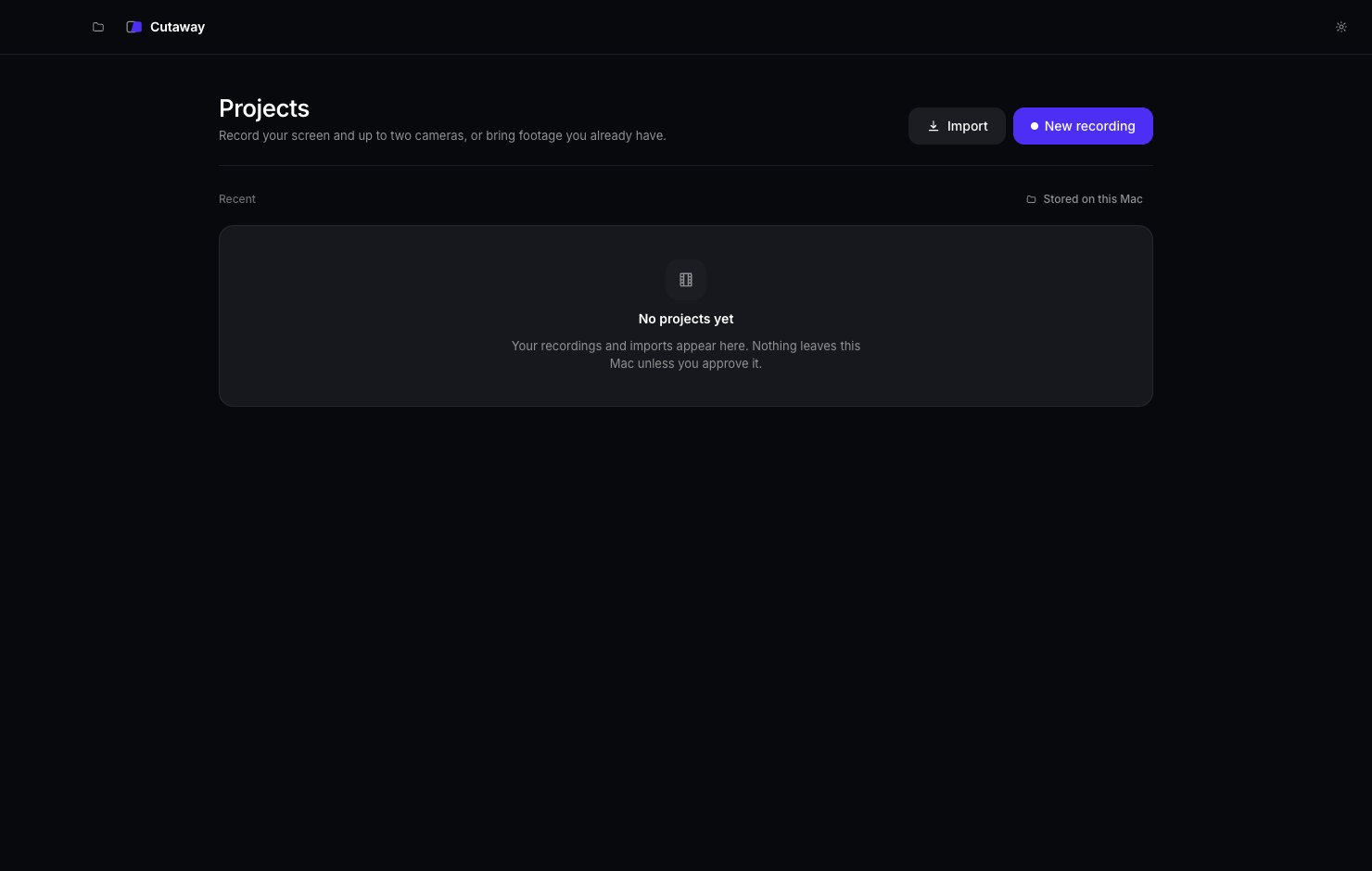
Let Cutaway record your screen
Your Mac protects your screen, camera and microphone. The first time you record, macOS asks if Cutaway may use them. Cutaway only asks for the things you switch on.1
Press Allow… in Cutaway
When you start your first recording, Cutaway shows an Allow… button. Press it.
2
Turn Cutaway on in System Settings
macOS opens System Settings → Privacy & Security → Screen & System Audio Recording. Find Cutaway in the list and switch it on.
3
Come back to Cutaway
Switch back to Cutaway. It notices the change by itself. You don’t need to restart it.
Update Cutaway
To get a newer version, download the latest Cutaway.dmg from the latest release page. Drag Cutaway into Applications again and choose Replace. Your projects stay where they are. Replacing the app doesn’t touch them.Next
Make your first video
Follow the Quickstart. It takes about 5 minutes.