

Before you start: add your key
ElevenLabs and fal.ai are AI services you sign up for yourself. Cutaway uses your own account, so you pay them directly for what you make. (Your Mac’s own voices are free and need no account.)1
Get a key
- ElevenLabs: in ElevenLabs, open Developers → API keys and create a key. Give it access to Text to Speech, Sound Effects, Music and Voices (read).
- fal.ai: in fal.ai, open the dashboard → Keys and create a key.
2
Add it to Cutaway
Open Settings → AI generation, paste the key, and press Save. Press Test to check it works. This doesn’t use any credits.
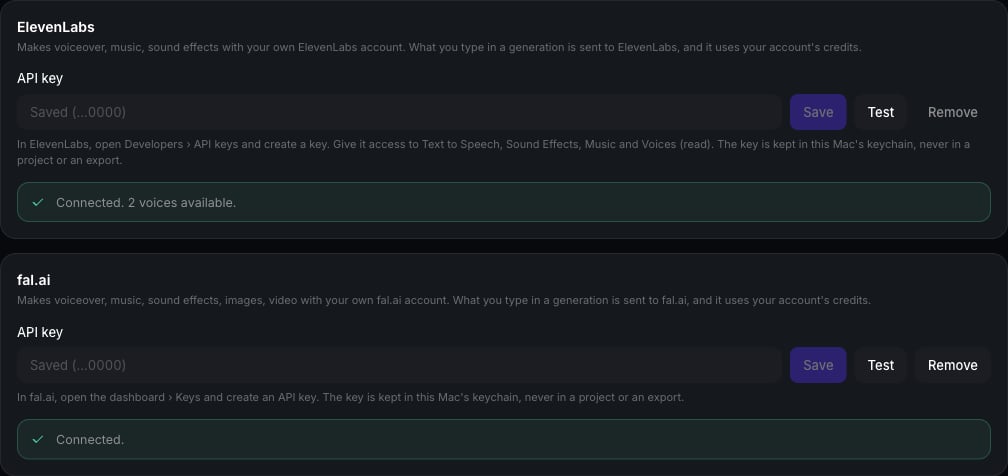
Your key is kept in your Mac’s keychain. It is never put in a project or an export. Only what you type for a generation is sent, to the service you chose.
Make a voiceover
1
Put the playhead where the voice should start
The voiceover is added there.
2
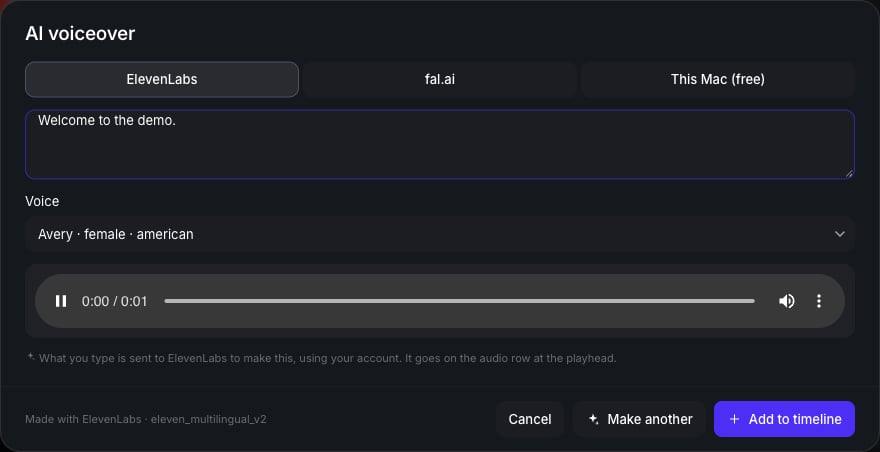
Press + on the audio row and choose AI voiceover…
3
Choose who makes it
ElevenLabs, fal.ai, or This Mac (free).
4
Type what it should say and pick a voice
Press Generate, then listen to it in the window.
5
Keep it
Not quite right? Change the words or the voice and press Make another. Happy? Press Add to timeline.
Make music or a sound effect
- Put the playhead where it should start.
- Press + on the audio row and choose Generate music… or Generate a sound effect….
- Describe it, for example “calm lo-fi beat” or “a soft whoosh”.
- Set the Length. For music from ElevenLabs, leave Instrumental on so there’s no singing over your voice.
- Press Generate, listen, and press Add to timeline.
Make a picture or a short video
- Press + on the video row to add it as its own clip, or on the text & effects row to put it over your footage (like B-roll).
- Choose Generate an image… or Generate a video….
- Describe it, and choose a Shape: Wide, Tall or Square. Videos can be 5 s or 8 s long.
- Press Generate, look at it, and press Add to timeline.