

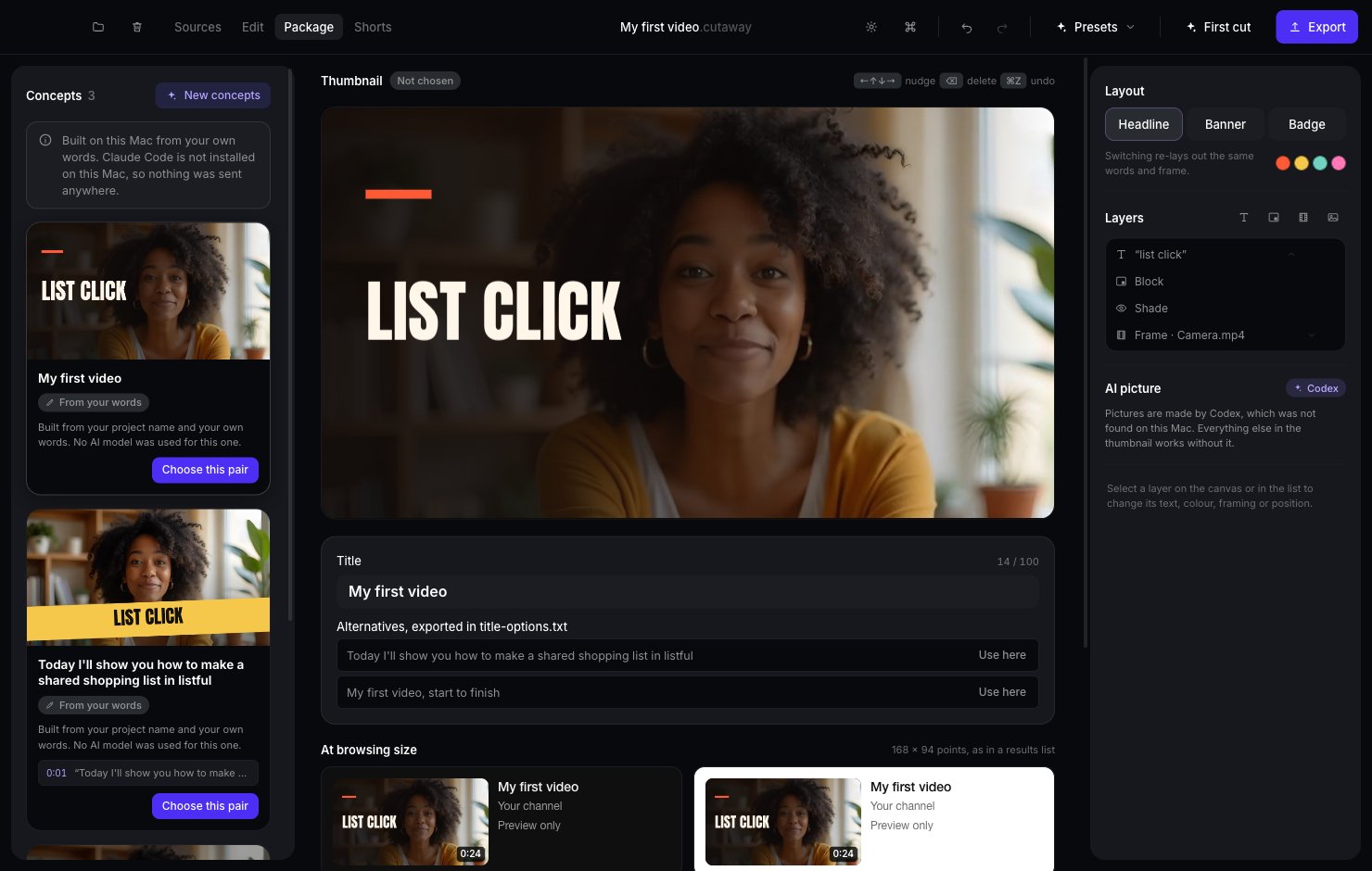
Make a thumbnail and title
1
Open Package
Click Package in the top bar.
2
Press Create three concepts
Cutaway makes three thumbnail and title ideas.
3
Pick one
Press Choose this pair under the one you like best.
4
Change anything
- Click the words on the thumbnail to change them.
- Pick a different Layout: Headline, Banner or Badge.
- Change the Title in the box under the thumbnail.
Add layers
A thumbnail is made of Layers, stacked on top of each other. You’ll find them on the right. Use the small buttons next to Layers to add:- Add text: new words you can type.
- Add a shape: a block, pill or circle of colour.
- Add the frame at the playhead: a real picture from your video, at the spot where the playhead is.
- Add an image file: a picture from your Mac, like a logo.
Make a background picture with AI
Under AI picture, Cutaway can make a new background picture for your thumbnail. This needs Codex installed and signed in on your Mac.- Describe the picture in the box, or leave it empty to follow the title.
- Press Generate picture.
To make the picture, your title, a few of your words and up to two stills from your video are sent to OpenAI. Nothing else in the thumbnail needs Codex.
Pick a different title
Under the Title box, Alternatives shows the titles from your other ideas. Press Use here to swap one in. The alternatives are also saved in your YouTube package.Check before you publish
If something might hurt your title or thumbnail, a box called Worth a look before you publish appears. For example, it warns you when:- the title is too long for a phone screen, or over YouTube’s 100-character limit
- the title is all capitals
- the thumbnail has more than five words
- the thumbnail repeats the title
See how it looks on YouTube
Under At browsing size, Cutaway shows your thumbnail as small as it’ll look in a list of videos. Make sure the words are still easy to read.Write a description and chapters
Further down the page:- Description: what your video is about, in your own words. It’s saved as description.txt. If you leave it empty, it’s left out.
- Chapters: the parts of your video, shown on YouTube’s progress bar. Press Add first chapter, then Add at playhead for each new part. YouTube needs at least three chapters, each ten seconds or longer, starting at 00:00. When they’re right, you’ll see Valid for YouTube.
Tips for beginners
- Short words win. Three or four big words are easier to read than a sentence.
- Show a face. Thumbnails with a face often get more clicks.
- Say what people get. For example, “Share a list in 1 minute”.
The thumbnail and title are saved when you export a YouTube package. See Export.