

Open it
- On the recording screen, press Teleprompter (under Start recording).
- Or, while you record, press the T button on the floating recording controls.
Add your script
The first time, it opens on the script editor. Type or paste what you want to say. Leave an empty line between paragraphs. At the bottom it shows how many words you have and about how long they take to read. Press ✓ (Done) to see it as a teleprompter. Press the pencil to edit it again.Read while you record
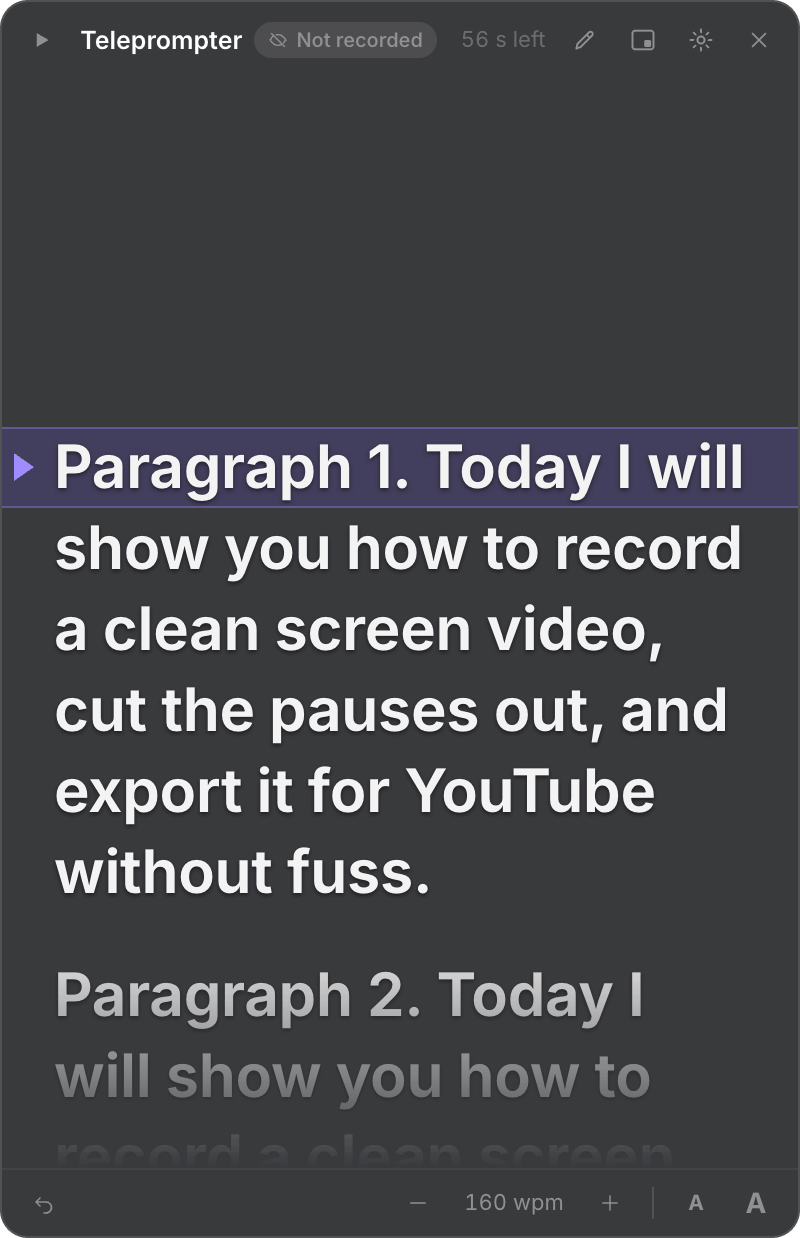
By default, the teleprompter starts scrolling when the recording starts, pauses when you pause, and stops when you stop. Just press Start recording and read. You can also control it yourself:
The speed is in words per minute (wpm), so changing the text size doesn’t change how fast you read. The top of the window shows about how much time is left.
Put it where you want
Drag the top bar to move it anywhere, and drag an edge to resize it. It opens in the same place next time. Or press the layout button and pick a spot:- Under the camera: top centre, so your eyes stay near the camera while you read.
- Left side or Right side: a tall column.
- Bottom: low and centred.
- Over my camera bubble: right on top of your camera preview.
Settings
Press the gear in the teleprompter for:- Pace, Text size and Background (how see-through it is).
- Start, pause and stop with the recording: turn this off to control it only by hand.
- Mirror the text: flips it, for teleprompter glass.
Your script stays on your Mac. The teleprompter, the recording controls and your camera bubble are all left out of every recording.