

Make a finished clip from my settings-tour video: cut anything slow, add a title, bold captions, and export it.The AI does the work inside the Cutaway window while you watch. Everything it does stays editable. You can keep going by hand, undo any step, or go back to an earlier version.
This works through MCP, a standard way for AI assistants to use apps. You don’t need to know how it works. Cutaway sets it up for you with one click.
Connect it (one click)
1
Open Settings
In Cutaway, press Command + , and go to AI tools.
2
Press Connect
Press Connect next to Claude Code or Codex. When it says Connected, you’re done.If it says Not installed on this Mac, install Claude Code or Codex first. See Set up the AI helpers.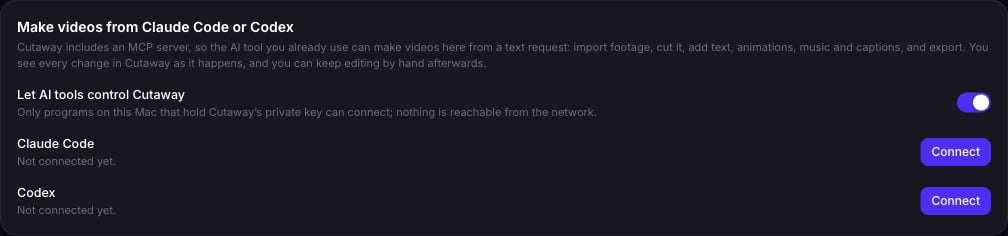
3
Start a new chat in your AI tool
Open a new session in Claude Code or Codex, so it sees Cutaway. Then ask it to make a video with Cutaway.
Things you can ask for
- “Make a first cut of
~/Movies/demo.movand show me.” - “Remove the part where I say ‘let me try that again’.”
- “Zoom in when I open the settings page.”
- “Add a title at the start that says ‘Share a list in 1 minute’.”
- “Turn on bold captions and add quiet background music from
~/Music/bed.mp3.” - “Export it as an MP4.”
You stay in control
- Every change is a version. Each change the AI makes is saved in History as “AI tool: …”. Click it to look, or Restore an earlier version. See Undo and versions.
- Check its work in AI review. Changes made by the AI show up in the AI review panel, where you can put anything back. See AI review.
- It won’t cut your words lightly. If the AI isn’t sure about cutting something you said, Cutaway keeps it as a suggestion for you to approve in AI review instead.
- Turn it off any time. Switch off Let AI tools control Cutaway in Settings → AI tools.
Is it private?
- Only programs on your own Mac that hold Cutaway’s private key can connect. Nothing is reachable from the internet.
- Your video and sound files stay on your Mac. The AI tool sees text, like your transcript and a description of the edit, plus the pictures it asks for to check its work.
- Making new voices, music, pictures or video uses your own ElevenLabs or fal.ai key and spends your credits. The AI is told to do this only when you ask for it.
Set it up by hand
Using a different AI tool, or prefer the terminal? Settings → AI tools → Add it by hand shows the exact command, with your paths filled in. For an app installed in Applications, it looks like this:- Claude Code
- Codex
ELECTRON_RUN_AS_NODE=1. Nothing else needs installing, and it opens Cutaway if it isn’t running.
Long exports time out in Codex
Long exports time out in Codex
Exporting a long video can take a while. Give Codex more time by adding this to
~/.codex/config.toml:What the AI can do
The full list of tools (for the curious)
The full list of tools (for the curious)