

1
Start a new recording
Open Cutaway and press New recording.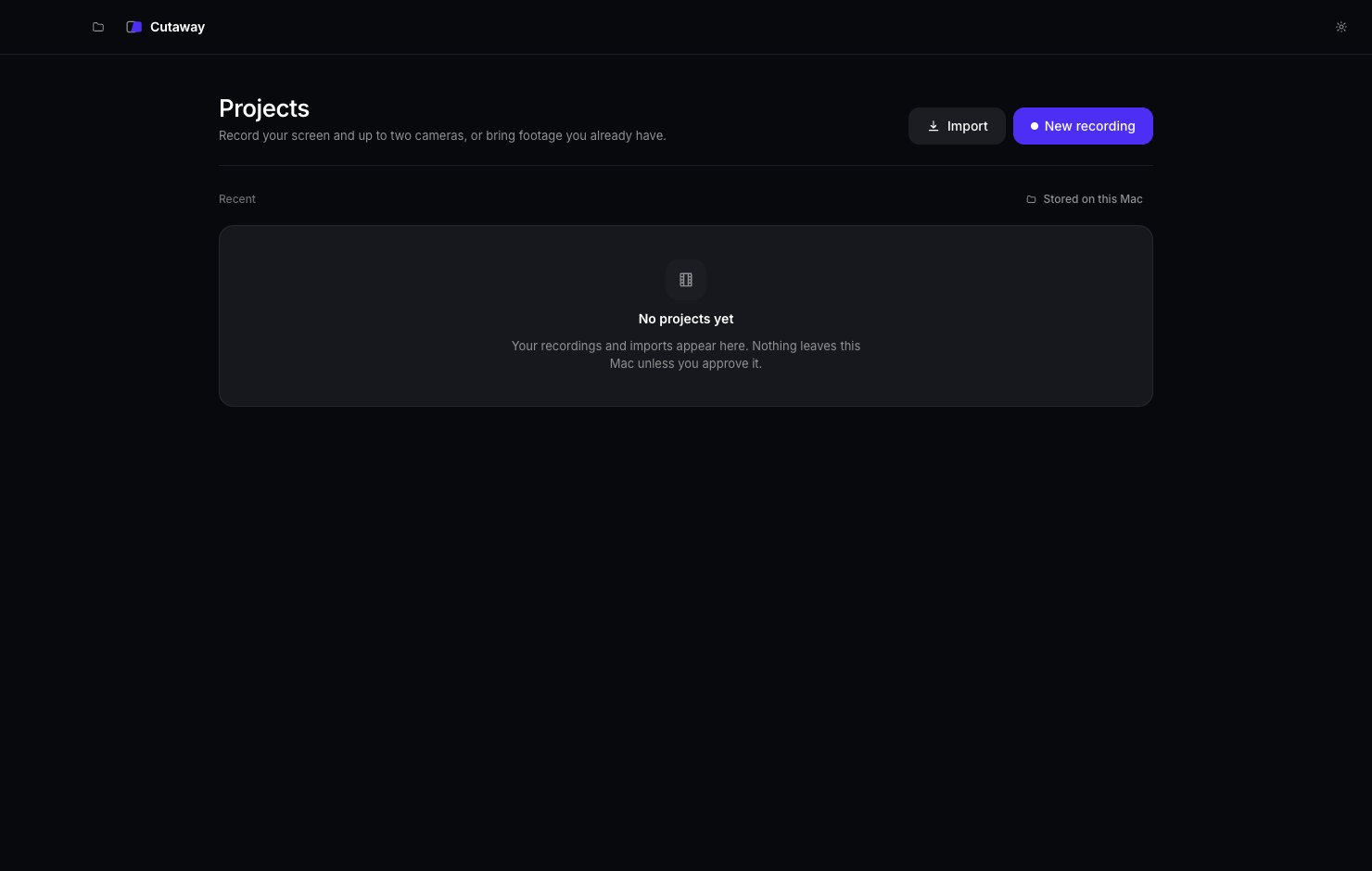
2
Choose what to record
In the bar at the bottom, pick Display to record your whole screen.If you want your face in the video too, click No camera and choose your camera. Click No microphone and choose your microphone so your voice is recorded.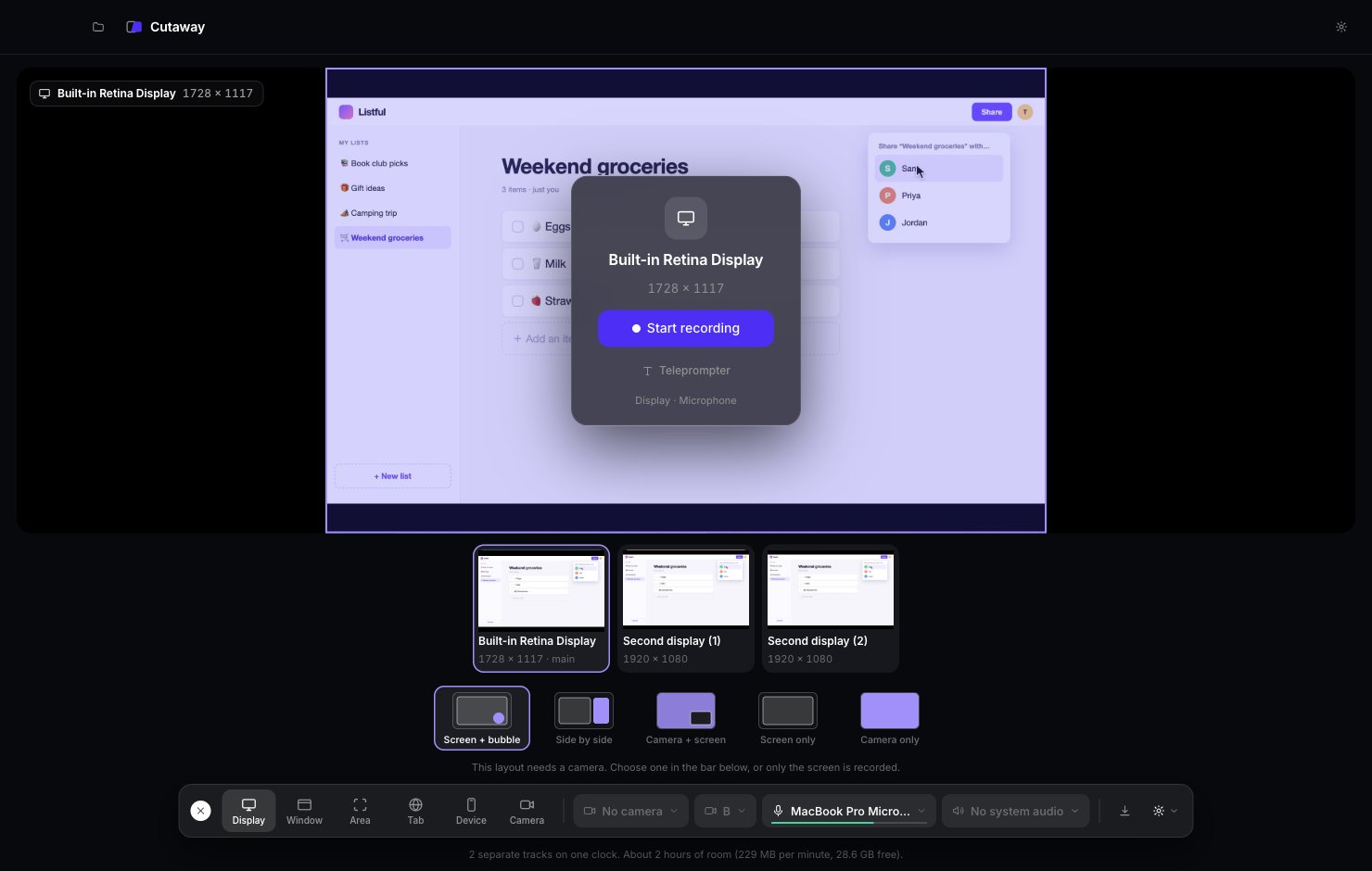
3
Press Start recording
Press the purple Start recording button. A short countdown appears, then Cutaway starts recording.Now do the thing you want to show, and talk about it as you go. Don’t worry about mistakes or pauses. Cutaway helps you remove them later.
4
Stop the recording
When you’re done, press the stop button on the small floating control bar.A Recording saved box appears. Your take is already in your project.
5
Make the first cut
In the Recording saved box, press First cut. The First cut screen opens. The choices already set are fine. Just press Create first cut.Cutaway now removes long pauses and filler words like “um”, and builds your video. This takes about as long as making a cup of tea.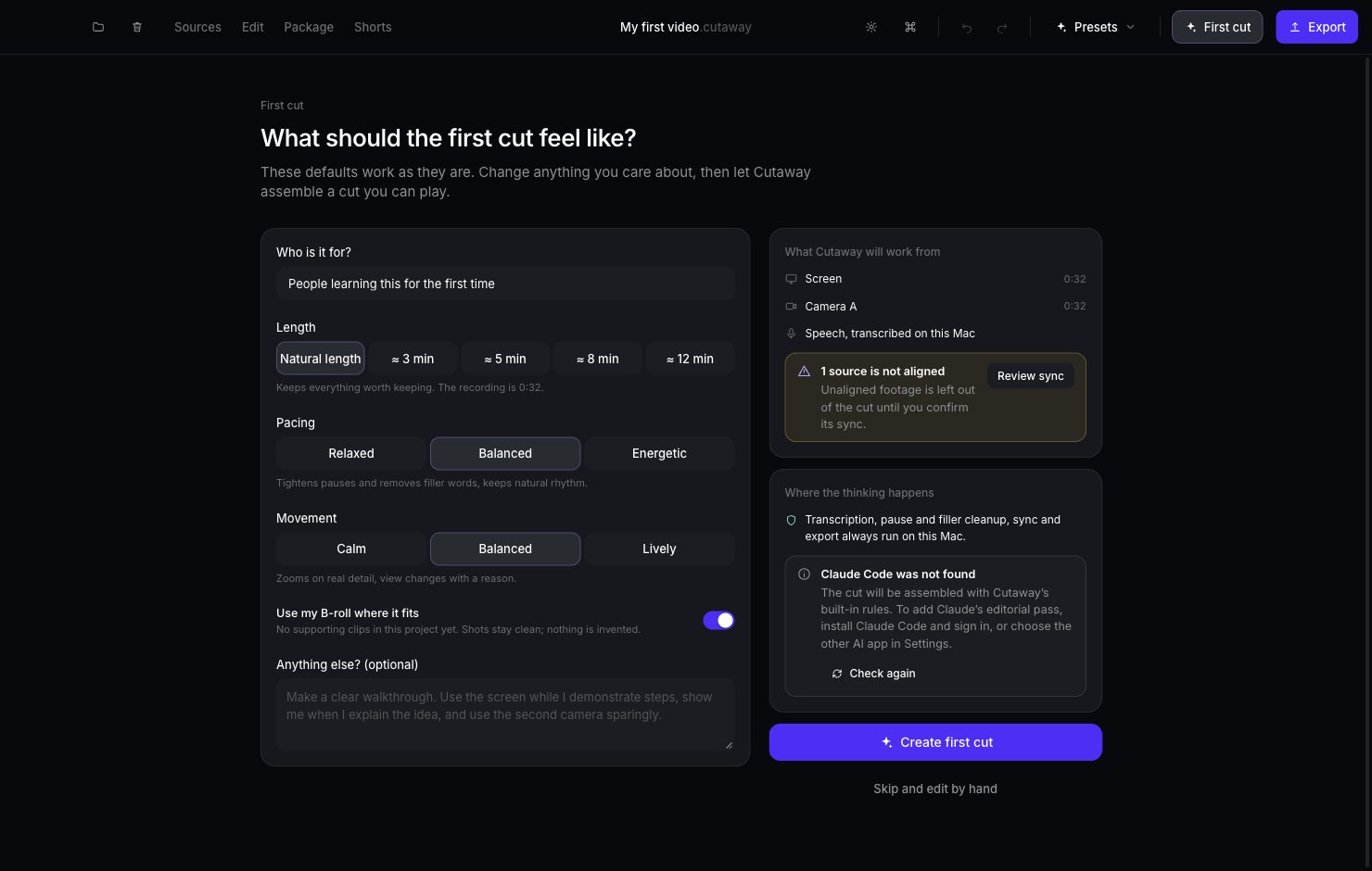
6
Watch it
You’re now in the editor. Press the play button (or the Space bar) to watch your video.Like it? Go to the next step. Want to change something? See A tour of the editor.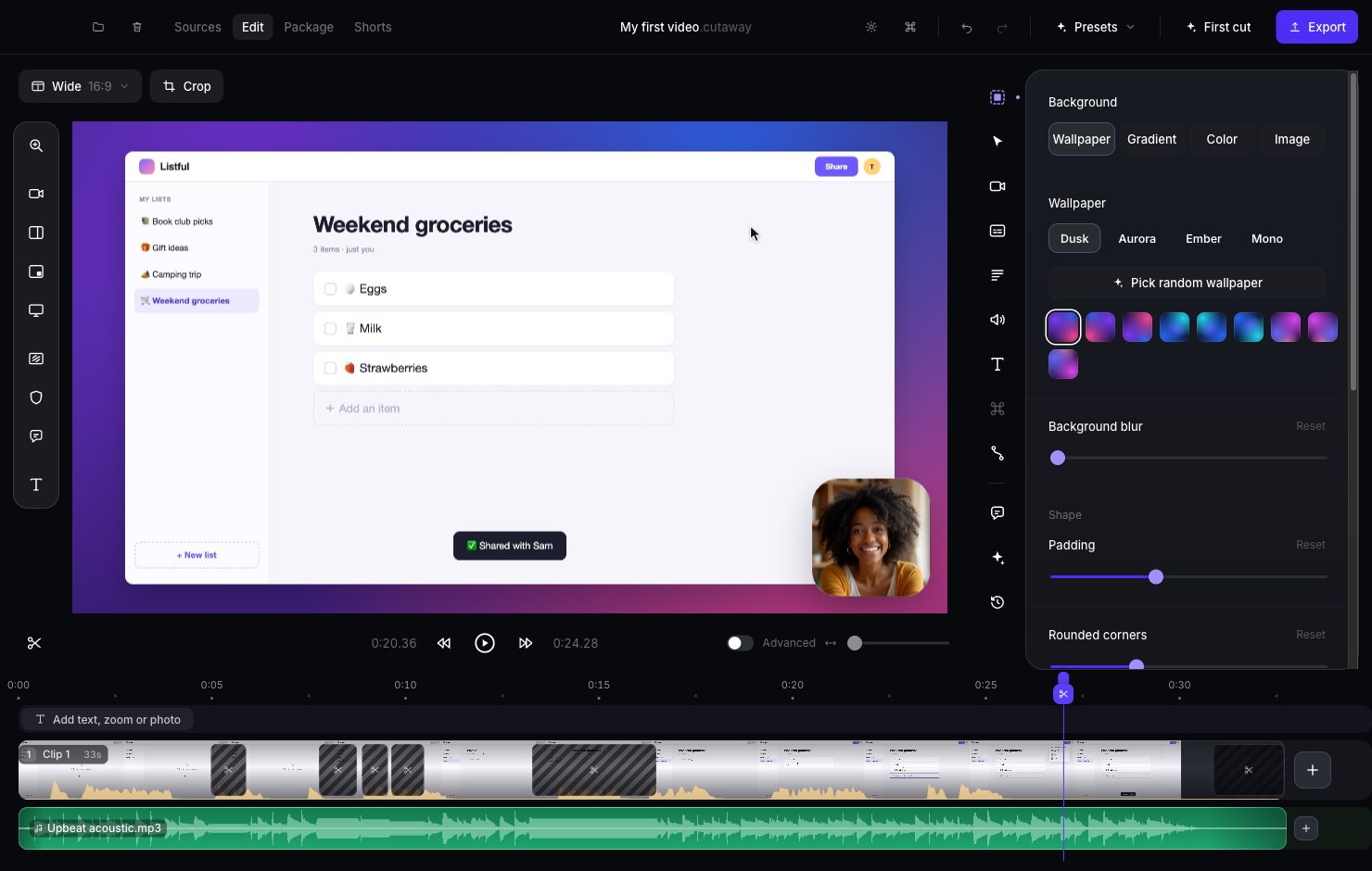
7
Export your video
Press the purple Export button in the top-right corner. Then press Export to file, choose where to save it, and press Save.Cutaway saves an MP4 video file (the most common kind of video file). Unless you choose somewhere else, it goes in the Cutaway Exports folder inside your Movies folder.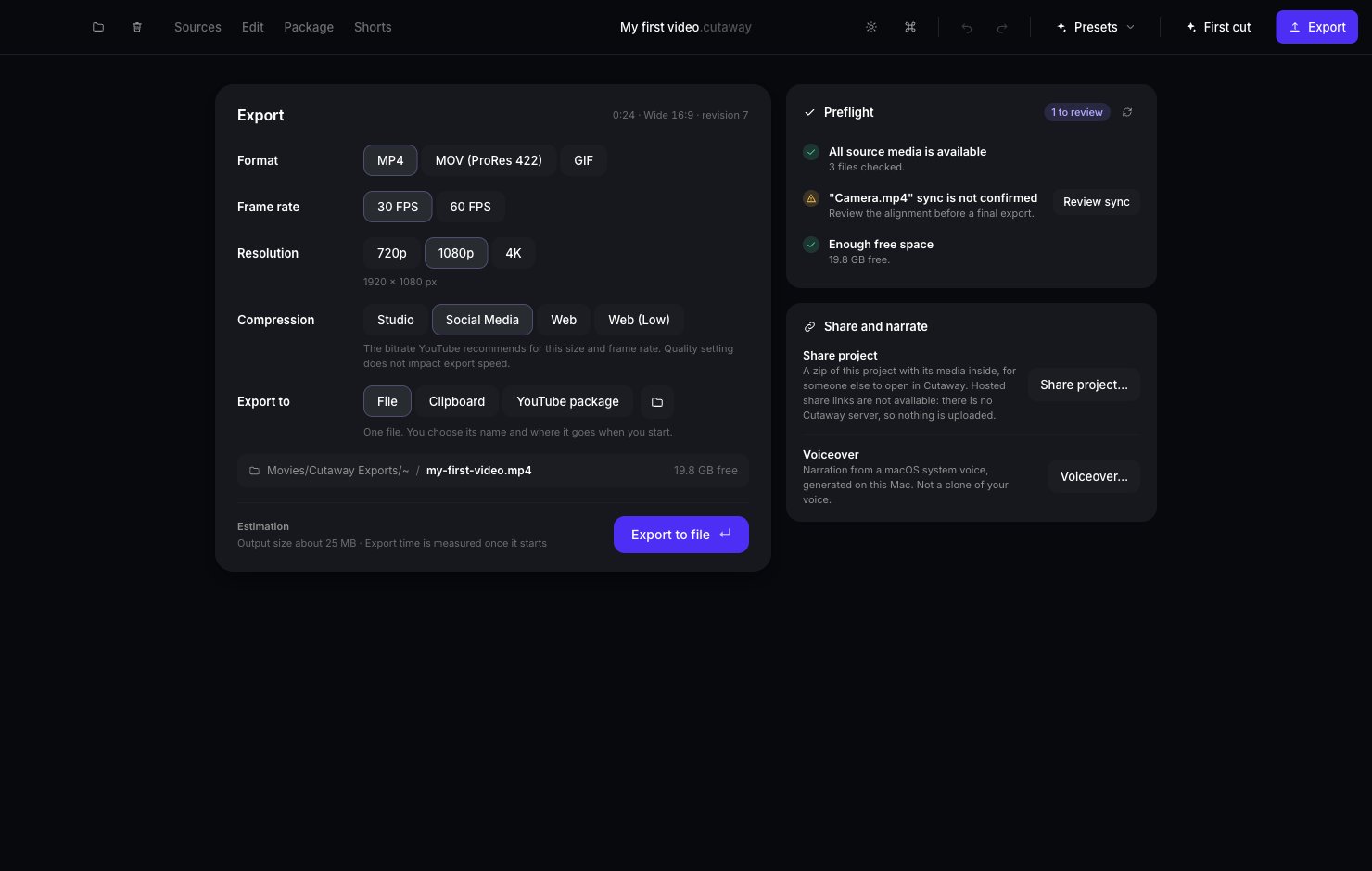
You did it 🎉
You made a video. You can upload the MP4 file to YouTube, send it to a friend, or post it anywhere.What to try next
Cut out mistakes
Remove words you didn’t mean to say, just by selecting them.
Zoom in on a detail
Help viewers see the small stuff.
Add captions and music
Words on screen and a little background music.
Words to know
What “timeline”, “clip” and “playhead” mean.