

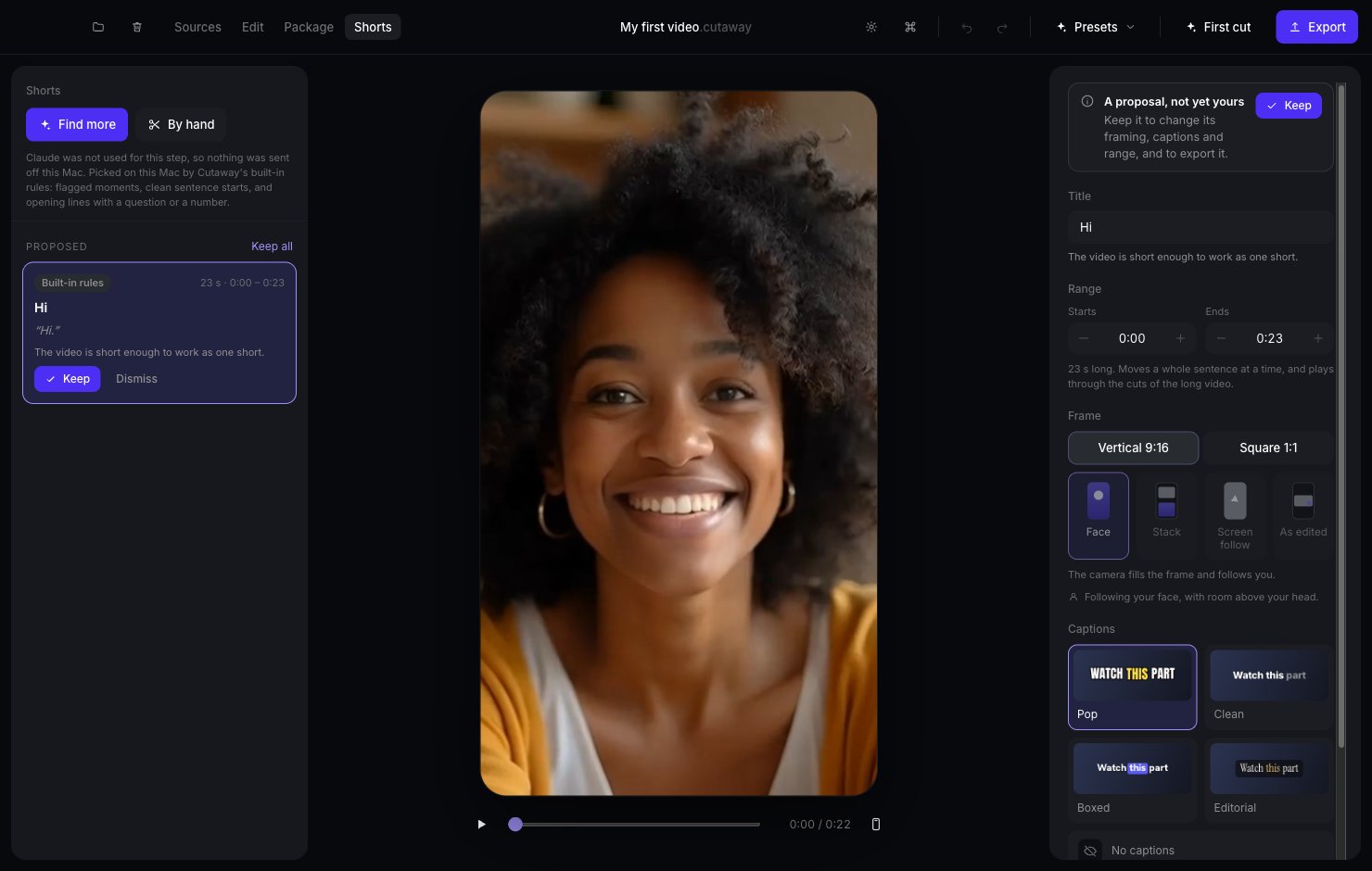
Make a short
1
Open Shorts
Click Shorts in the top bar.
2
Press Find shorts
Cutaway suggests the strongest moments. Each suggestion appears on the left. Want more ideas later? The same button then says Find more.
3
Keep the ones you like
Press Keep on a suggestion. Press Dismiss to drop it.
4
Adjust it (optional)
On the right you can change:
- Title: a name for the short.
- Range: where the short starts and ends. The minus and plus buttons under Starts and Ends move the start or end by one sentence, so a short never cuts you off mid-word.
- Frame: Vertical 9:16 or Square 1:1. Choose Face to follow your face, Stack to put your screen above your face, Screen follow to follow your mouse, or As edited to keep the views from your main video, fitted into the new shape.
- Captions: pick a caption style. The word you’re saying lights up. Use Where (High, Middle or Low) to move the captions, and Size to make them bigger or smaller.
5
Export it
Press Export this short. Each short is saved as its own video file. Made several? Export all saves them all at once.
Keep everything on your Mac
If the AI helper is set up, Find shorts uses it to pick the best moments. Press Rules only instead to use Cutaway’s built-in rules. Nothing leaves your Mac.You only see Face, Stack and Screen follow when they make sense. For example, Face needs a camera recording in that part of your video.