

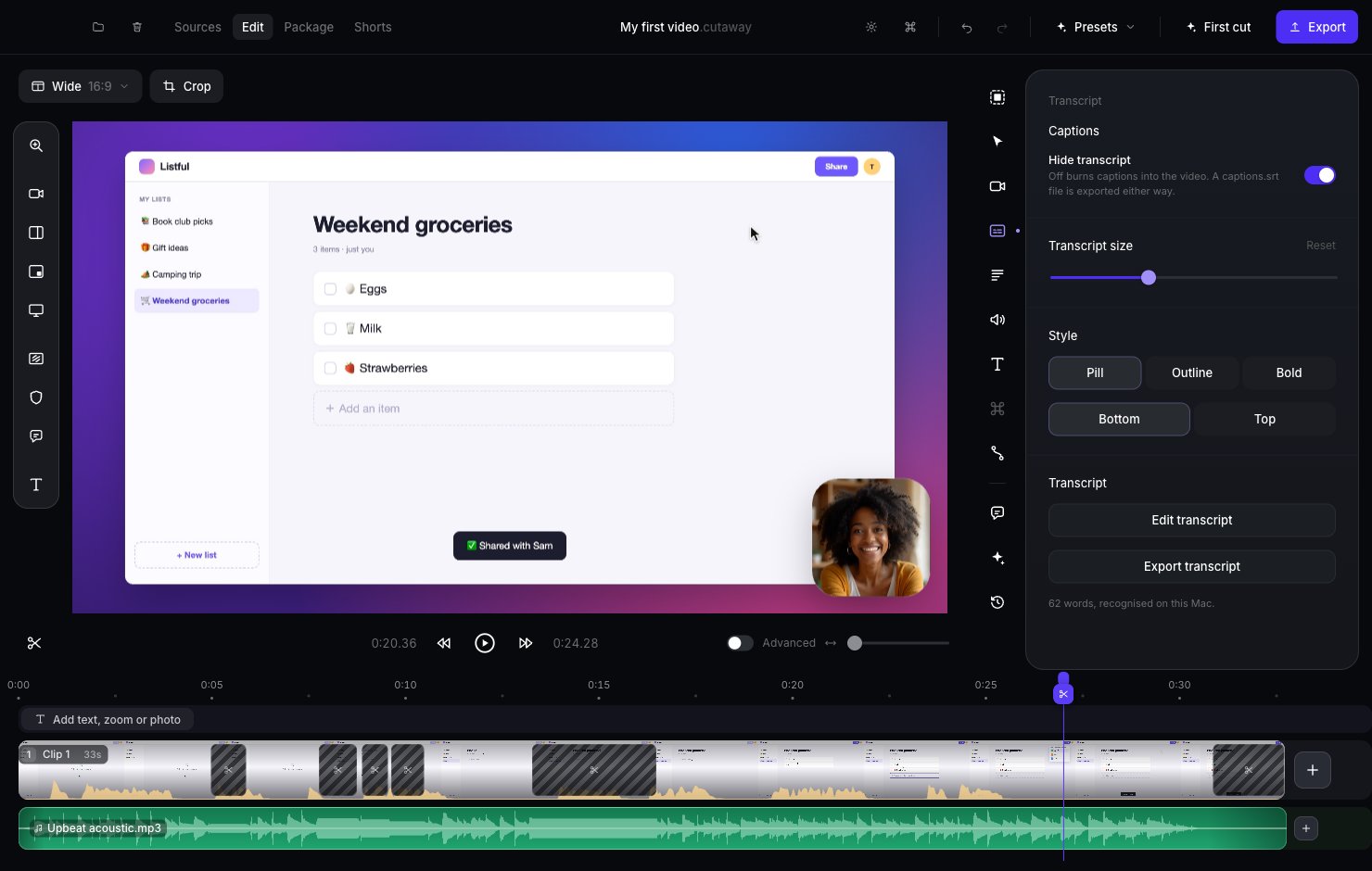
Turn captions on
1
Open the Captions panel
Click the Captions icon in the right sidebar (or press Command + 4).
2
Switch off Hide transcript
When Hide transcript is off, your captions show on the video.
3
Pick a style
- Style: Pill, Outline or Bold.
- Position: Bottom or Top of the video.
- Transcript size: drag the slider to make the words bigger or smaller.
Fix a wrong word
Captions sometimes mishear a word. Press Edit transcript, select the word and click Fix spelling. Only the caption changes. Your video doesn’t.Captions file
A captions file (an.srt file) holds your captions as text, timed to your final cut. You can upload it to YouTube, so viewers can turn captions on and off themselves. It works even when the captions aren’t shown on the video.
There are two ways to get one:
- From the Captions panel: press Export transcript. Cutaway saves an
.srtfile named after your project. - With a YouTube package: when you export a YouTube package, the folder includes a
captions.srtfile. See Export.
A normal video export (a single file) doesn’t include a captions file. Use Export transcript to get one.