Make your voice clear
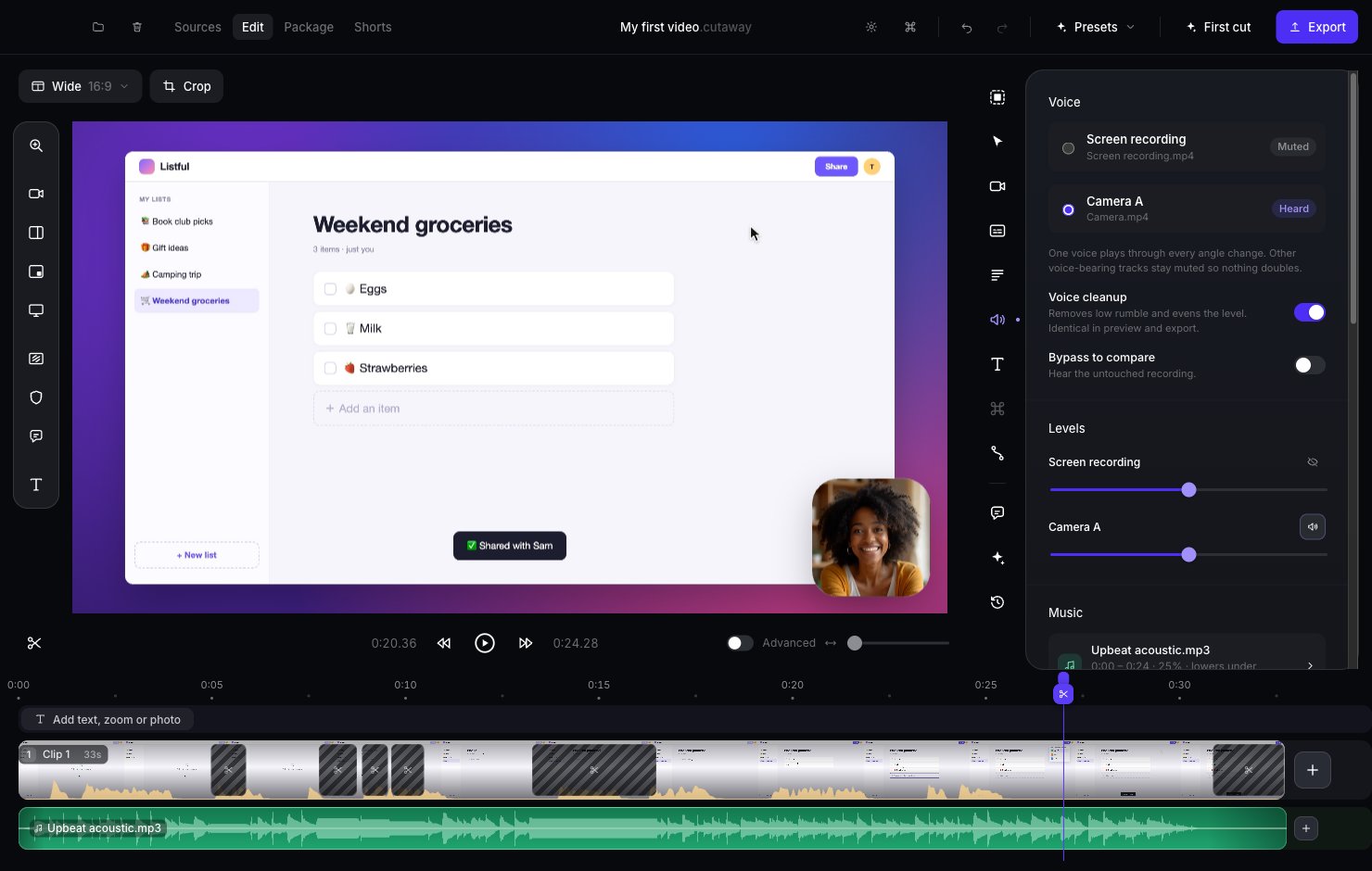
Voice cleanup is on by default. It removes low rumbling noise and keeps your voice at an even volume. To hear the difference, switch on Bypass to compare. Switch it off again when you’re done.Recorded with two microphones (for example, a camera and a mic)? Cutaway plays only one voice at a time so you don’t hear an echo. Pick which one under Voice.
Change the volume
Use the sliders under Levels to make each track louder or quieter.Add background music
1
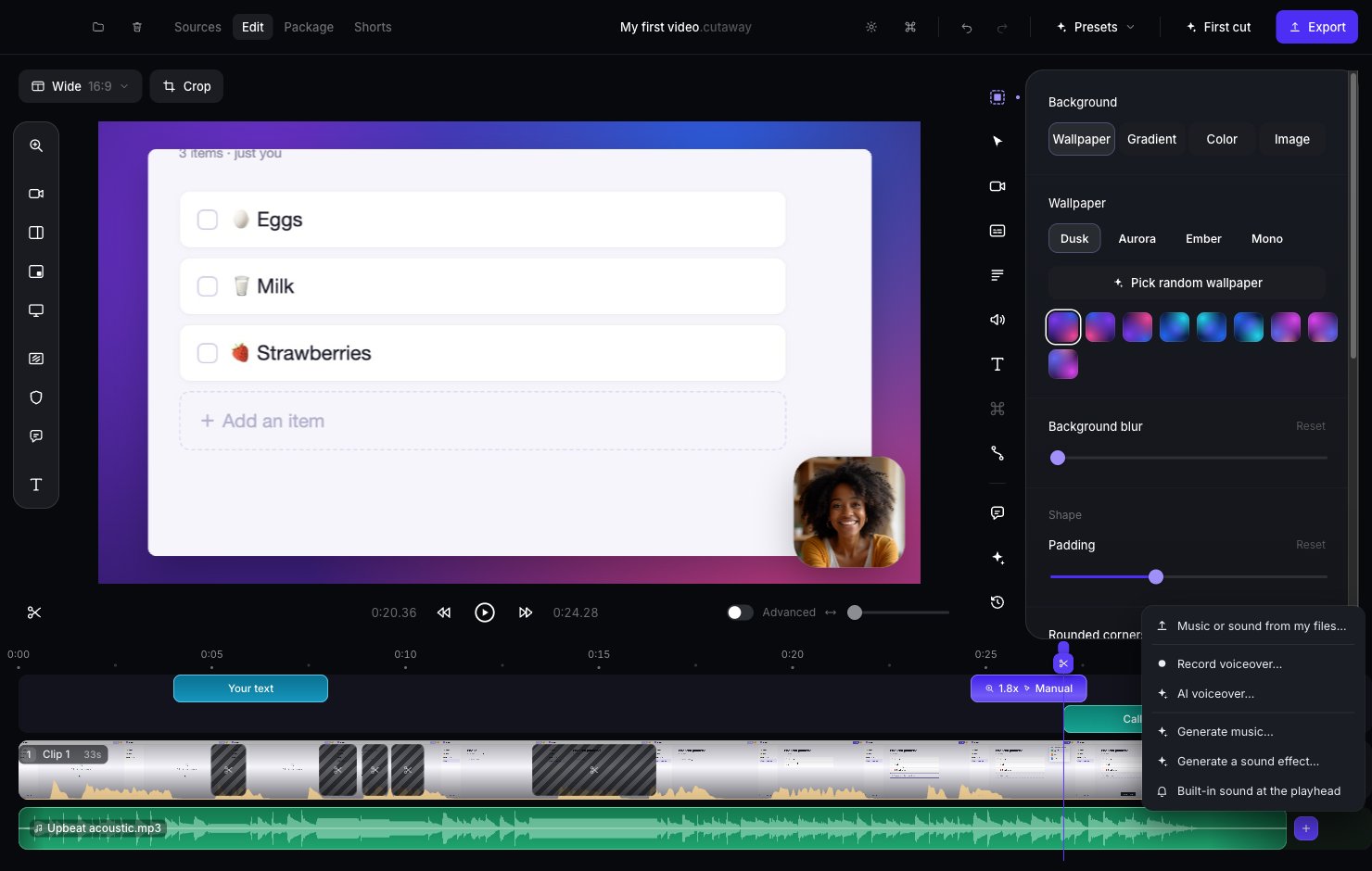
Press the + on the audio row
It’s at the end of the bottom row of the timeline.
2
Choose where the music comes from
- Music or sound from my files… to pick a music file on your Mac.
- Generate music… to have AI make some. See Make voice, music and pictures with AI.
3
Done
The music appears as a green block on the audio row, with its waveform. Cutaway makes it quieter while you’re talking, so your voice is always easy to hear.
Change the music
Click the music block on the timeline to select it. Then you can:- Drag it to start the music at a different moment.
- Drag its ends to make it shorter or longer.
- Split it at the playhead (press S or Command + B) to cut it into two pieces you can move or delete separately.
- Turn on Loop to start the song again when it runs out, so a short piece plays under the whole video.
- Set Fade in and Fade out.
- Set its Level, and turn Lower under speech on or off.
Make the music louder or quieter at certain moments
Under Volume over time, move the playhead to a moment and press the button to add a point there. Then, on the music block:- Drag a point up or down to change the volume. Drag it all the way down to silence the music there.
- Hold Shift while dragging to keep the point at the same moment.
- Double-click a point to remove it.
Add a sound effect
Move the playhead to the moment, press the + on the audio row, and choose:- Built-in sound at the playhead: a click, pop, whoosh and more. These are free and made on your Mac.
- Generate a sound effect…: describe any sound and AI makes it. See Make voice, music and pictures with AI.
- Music or sound from my files…: use a sound file you already have.
Record a voiceover
A voiceover is your voice recorded on its own and played over your video.1
Put the playhead where you want to start talking
2
Press + on the audio row and choose Record voiceover…
3
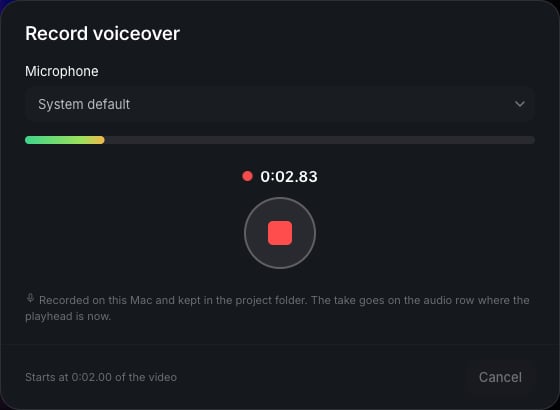
Pick your microphone and press the record button
The window shows how loud you are and how long you’ve been talking.
4
Press stop, then add it
Listen to the take. Keep it to put it on the audio row where the playhead was, or try again.