

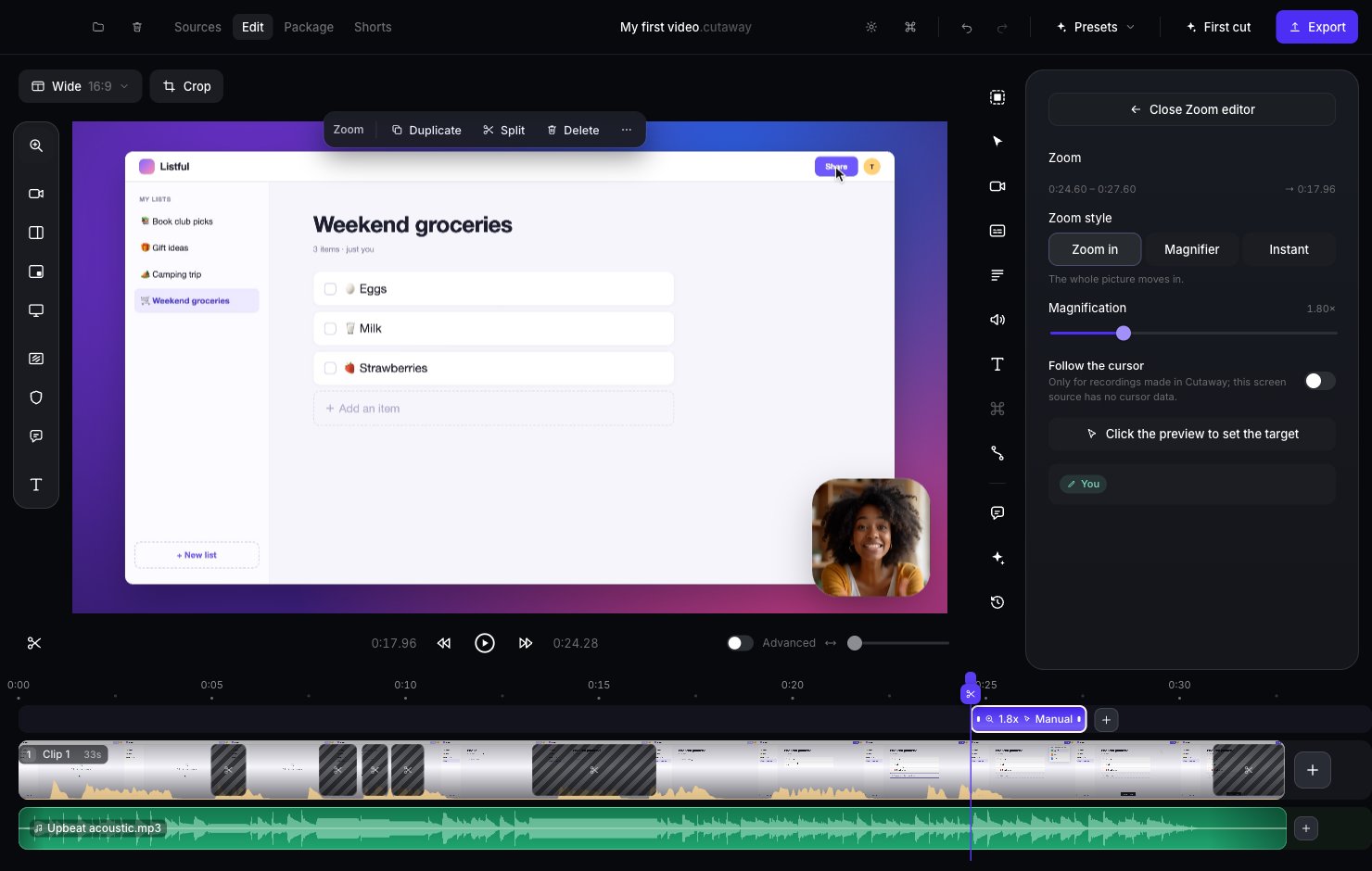
Add a zoom
1
Go to the moment
Click the timeline where you want the zoom to start.
2
Add the zoom
Click the magnifying glass at the top of the tools on the left of the preview. A purple zoom block appears on the timeline. It lasts 3 seconds.
3
Choose where to zoom
In the Zoom panel, click Click the preview to set the target. Then click the spot on the preview you want to zoom into.
4
Play it
Press Space to watch it.
Change a zoom
Click the zoom block on the timeline to select it. Then:- Make it longer or shorter: drag the ends of the block.
- Move it: drag the whole block.
- Zoom in more or less: use the Magnification slider.
- Zoom style:
- Zoom in: the whole video moves in. The usual choice.
- Magnifier: a round magnifying glass appears over one spot.
- Instant: jumps in with no movement.
- Delete it: press Backspace, or click Delete in the bar above the preview.