

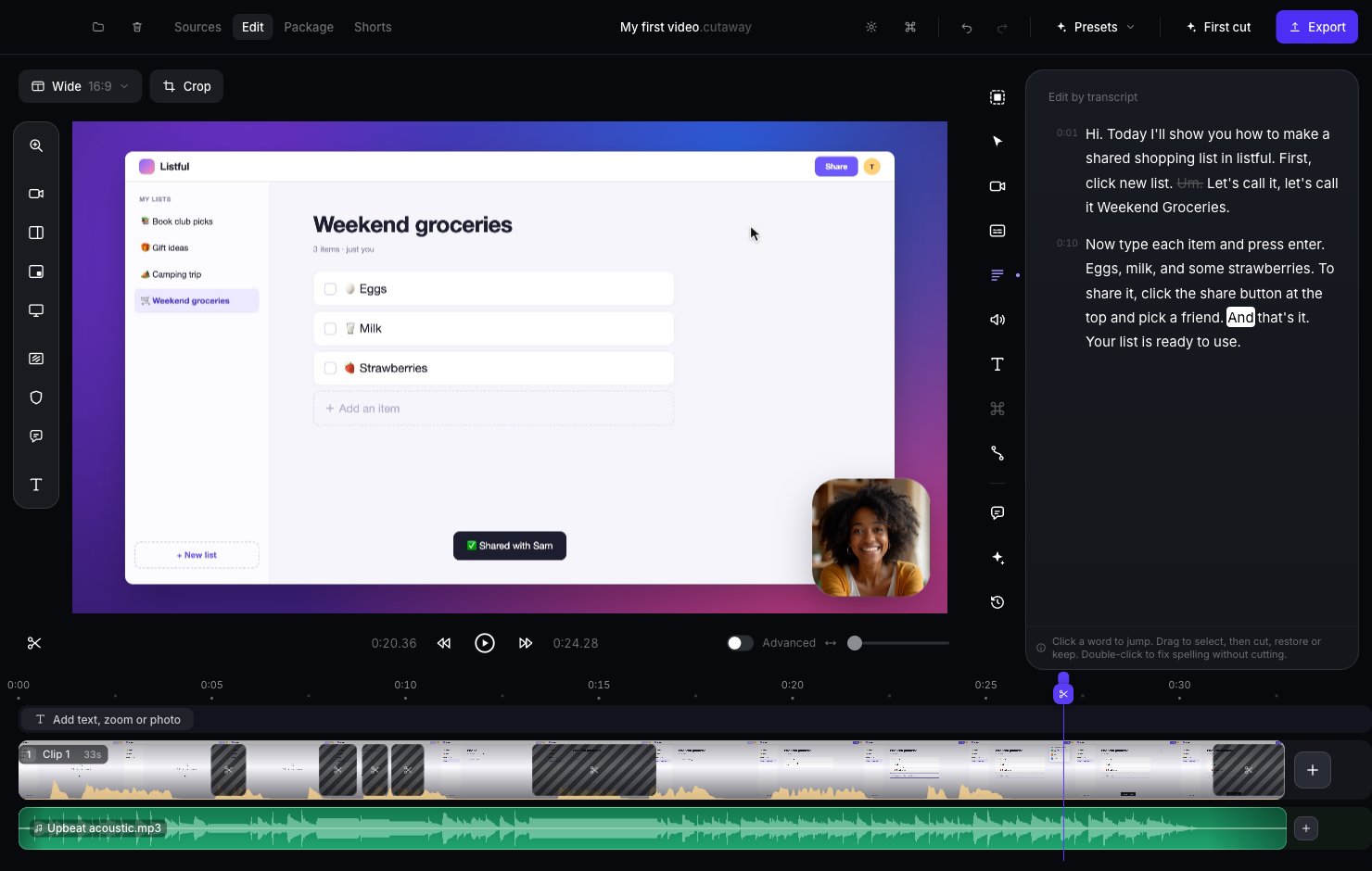
Open the transcript
Click the Transcript icon (the lines) in the right sidebar. Or press Command + 5.The transcript is made on your Mac. Your voice is never sent anywhere.
Remove words
1
Select the words
Click the first word you want to remove, and drag to the last one. They’re highlighted.
2
Cut them
Press Backspace, or click Cut in the bar that appears.
3
Check it
Removed words are shown crossed out. Press Space to play and hear the result.
Put words back
Select the crossed-out words and click Restore.Clean up “um”s and pauses in one click
If Cutaway finds any, two buttons appear at the top of the transcript:- Remove filler words: cuts “um” and “uh”. The words around them stay.
- Tighten pauses: shortens silent gaps where nothing happens on screen.
Already made a first cut? It usually removed these for you, so the buttons may not show.
Other things you can do
- Click a word to jump to that moment in the video.
- Fix spelling: select one word (or double-click it) and click Fix spelling. This only changes the caption text. No video is removed.
- Keep: select words and click Keep to protect them. The AI helpers will never cut them.