

Change the layout for one moment
A layout is how your screen and your face are arranged. You can switch layouts during the video. For example, show just your face when you say hello, then switch to your screen.1
Go to the moment
Click the timeline where the change should start.
2
Pick a layout from the tools
In the tools on the left of the preview, click one of:
- Fullscreen camera: just your face.
- Split screen: screen and face side by side.
- Camera overlay: your screen with your face in a bubble.
- Screen only: just your screen.
The layout buttons only show when your project has a camera.
Make your camera look good
Click the Camera icon in the right sidebar (or press Command + 3).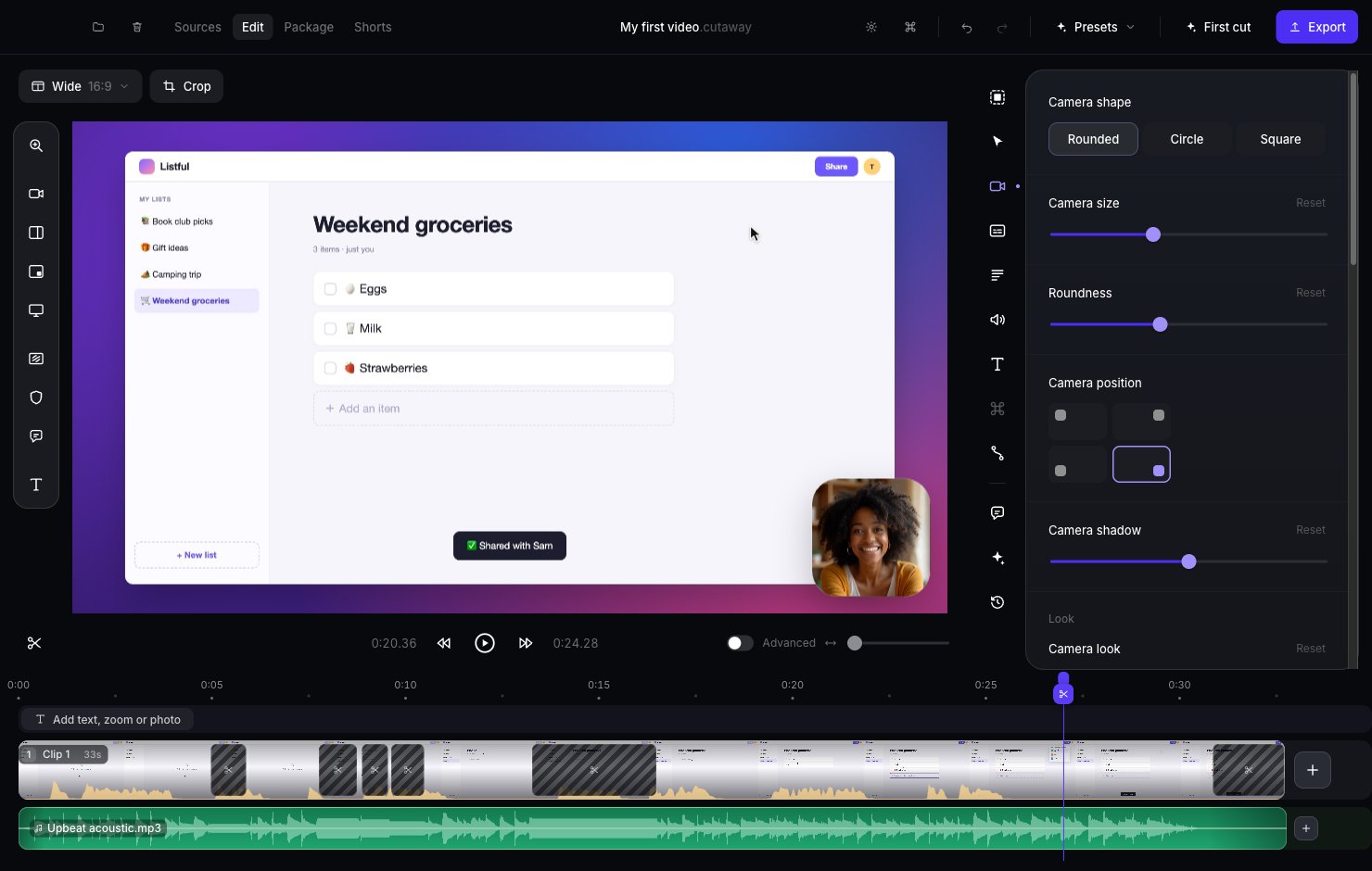
- Camera shape, size and roundness: Rounded, Circle or Square, big or small.
- Camera position: which corner the bubble sits in.
- Camera shadow: a soft shadow under the camera bubble.
- Camera look: quick color styles like Natural, Studio, Golden, Cool or Mono. Or adjust Brightness, Contrast, Saturation and Warmth yourself.
- Camera LUT: a color recipe file from another app. Press Choose a .cube file… to pick one, then drag Strength to make it stronger or softer. The file is copied into your project.
- Camera sharpening: drag Amount to make your camera a little crisper.
- Zoom on face and Follow face: keeps your face centered and filling the frame.
- Mirror camera: flips your camera left to right.
Remove the background behind you
Under Remove background, turn on Cut out the person. Cutaway hides what’s behind you. This happens on your Mac. Nothing is uploaded. Then pick what goes behind you:- None: you stand right on top of your screen recording, with no camera bubble.
- Blur: your own background, blurred.
- Color: a plain color. Click the color box to pick one.
Jump cuts
When you cut a mistake out of a talking-head video, your face can “jump” a little. Cutaway can hide this by zooming your camera in slightly after each cut, so it looks like a deliberate camera change.1
Turn it on
In the Camera panel, under Jump cuts, turn on Punch in on jump cuts.
2
Pick how far it zooms
Drag Punch-in (from 105% to 130%). The panel lists every cut where the framing changes.
3
Leave out a cut (optional)
Click a cut in the list (or select it on the timeline). Then turn off Punch in at this cut for that one cut.
Punch-in only works where a cut sits inside one full-screen camera shot, with no zoom and no layout change at that moment.