

Blur part of the screen
1
Go to the moment
Click the timeline where the private info first shows up.
2
Add a blur
In the tools on the left of the preview, click the blur button (it says “Hide sensitive content” when you hover over it).
3
Drag over the private info
Drag a box on the preview over the part you want to hide. Press Done.
4
Make it last long enough
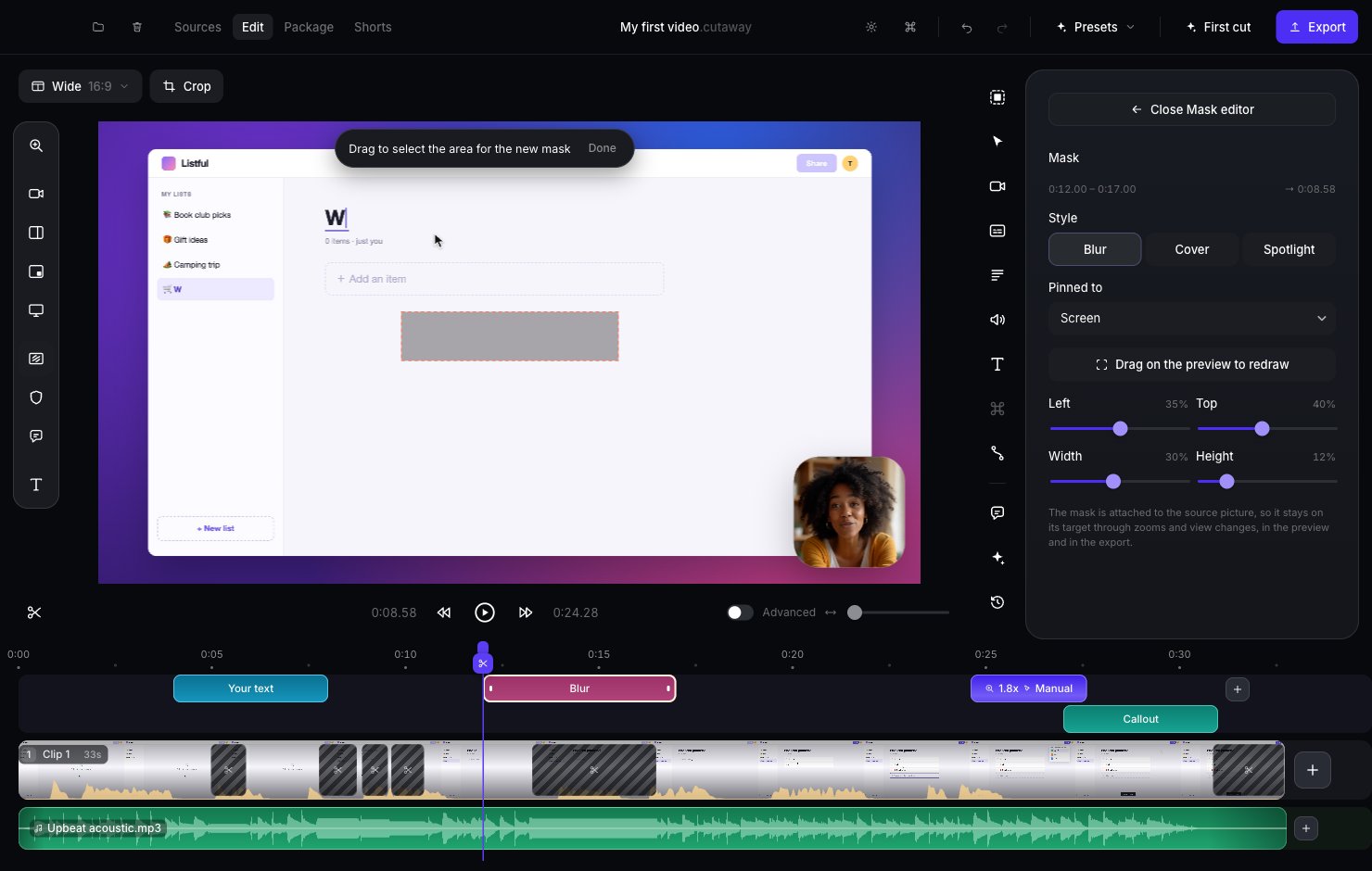
A pink Blur block appears on the timeline. Drag its ends so it covers the whole time the info is on screen.
Blur styles
- Blur: makes it fuzzy and unreadable.
- Cover: hides it with a solid box.
- Spotlight: the opposite. Everything except the box is darkened, to draw attention to it.
Change a blur
Click the blur block on the timeline to open its panel on the right.- Style: Blur, Cover or Spotlight.
- Pinned to: what the blur sticks to: Screen, Camera A or Camera B. Use a camera when the private info is in your camera picture, like a note on the wall behind you.
- Drag on the preview to redraw: draw the box again.
- Left, Top, Width and Height: move or resize the box exactly.
Let Cutaway find private info
Cutaway can look for things like email addresses, passwords, keys and card numbers for you. Click the shield in the tools on the left of the preview, then press Scan the recording. Cutaway shows what it found, and you choose what to blur.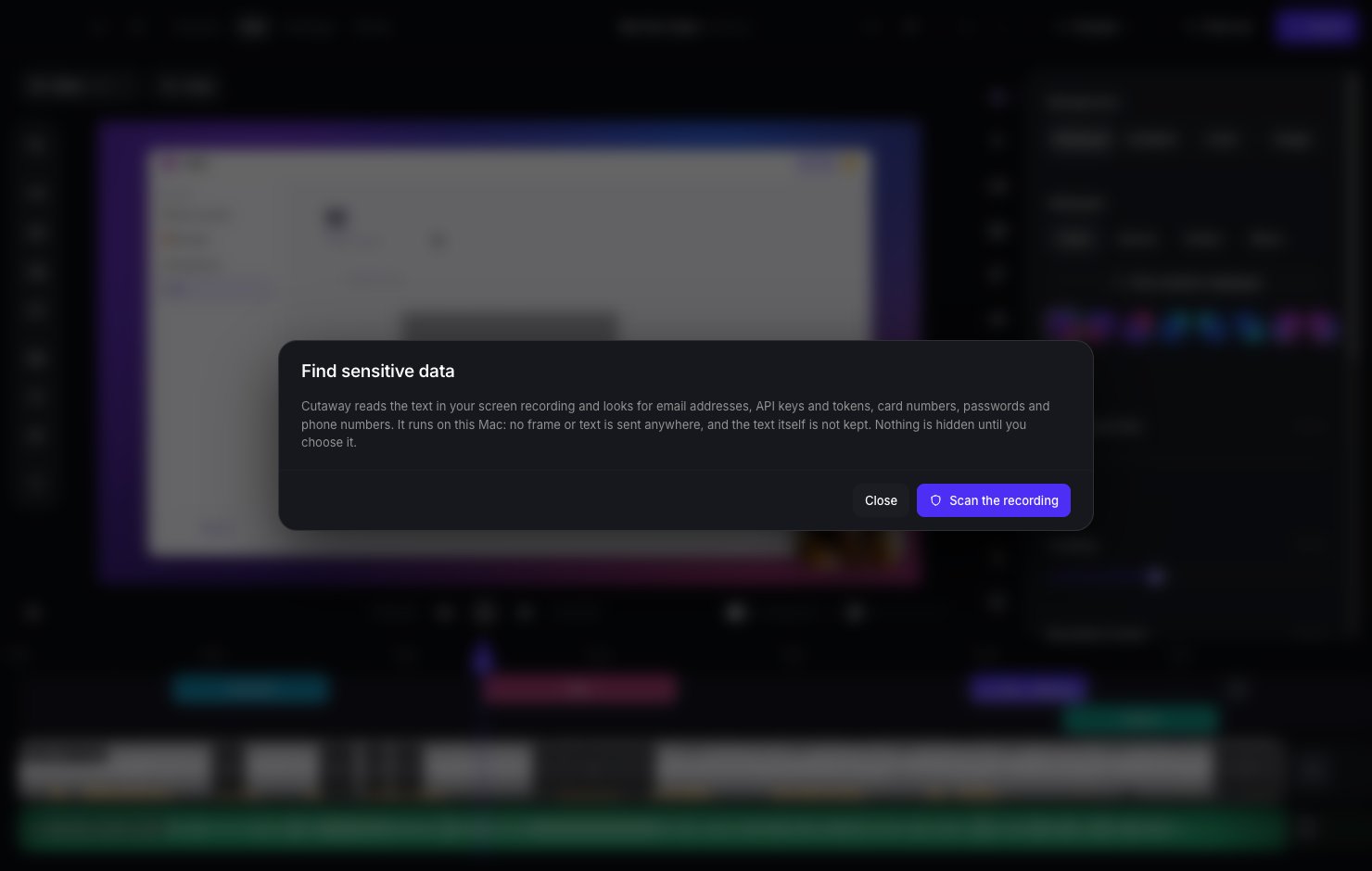
The scan happens on your Mac. Nothing is sent anywhere. Always watch your video before sharing, too, in case something was missed.