

Cursor
The cursor is your mouse pointer. When you record in Cutaway, it keeps the cursor separate from the video, so you can change it afterwards. Click the Cursor icon (the arrow) in the right sidebar, or press Command + 2. You can:- change the Cursor size,
- turn on Smooth movement so it glides instead of jittering,
- Hide cursor if not moving, or Hide cursor completely,
- add a Click effect: a soft ripple every time you click.
- Always use default pointer: always show the normal arrow. When it’s off, you see the hand over links and the text cursor over text, just as you recorded.
- Rotate cursor while moving: the arrow leans a little in the direction it moves.
- Stop cursor shaking: ignores tiny wobbles while your hand rests on the mouse.
- Loop cursor position: the cursor goes back to where it started over the last second. Handy for videos that play on a loop.
- Click sound: a quiet tick every time you click. Use Click volume to make it louder or softer.
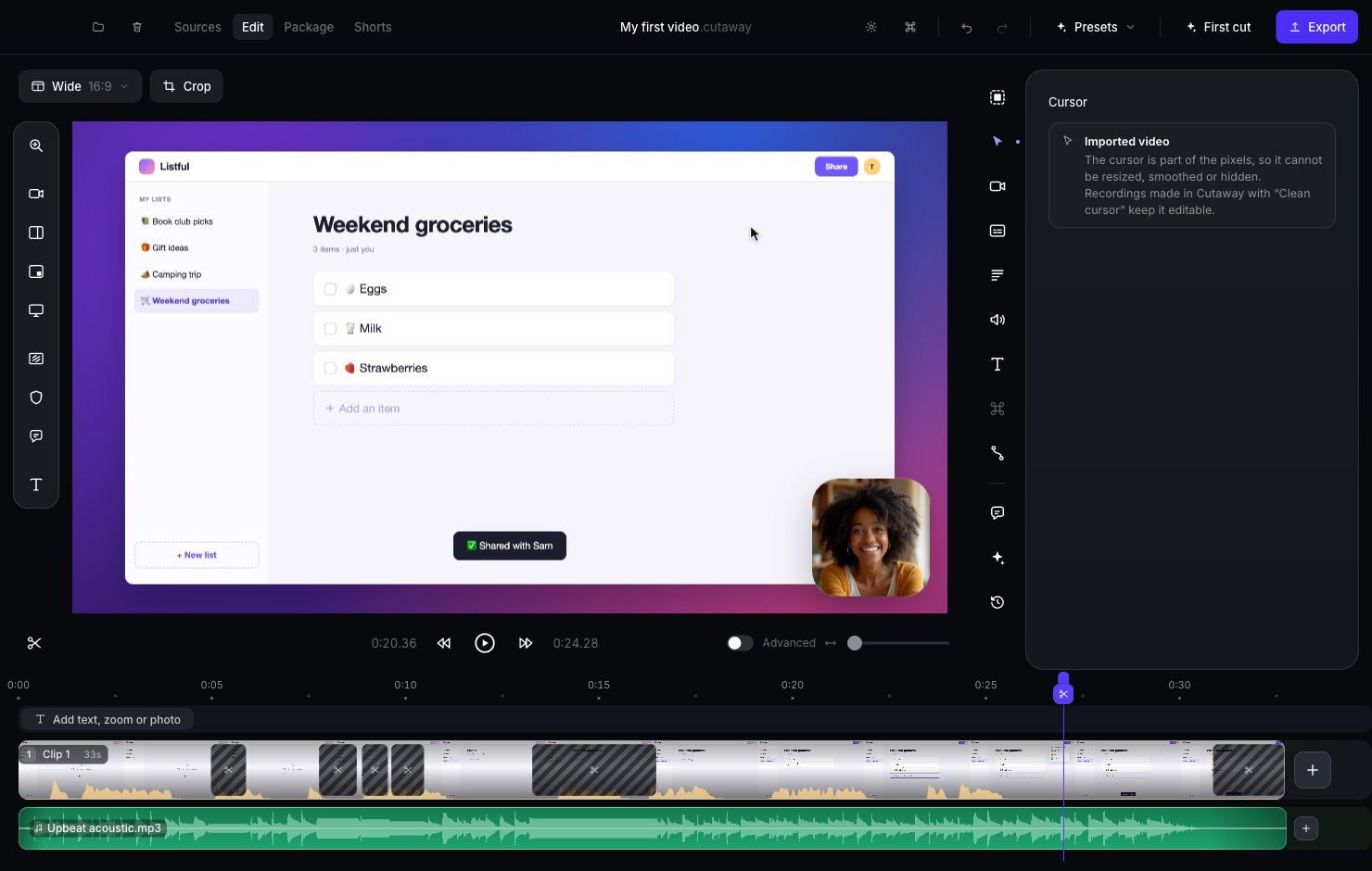
For videos you imported, the cursor is part of the picture, so it can’t be changed. You’ll see “Imported video” in this panel.
Keyboard shortcuts on screen
Teaching keyboard shortcuts? Cutaway can show the keys you press on the video, like ⌘ C.- Before you record, open the recording options (the gear in the recorder) and turn on Record keyboard shortcuts.
- In the editor, click the ⌘ icon in the right sidebar. Under Show keyboard shortcuts, turn on Show shortcuts in the video.
Speed up typing
Long stretches of typing can be slow to watch. In the same ⌘ panel, under Speed up typing, Cutaway shows how much typing it found. Pick a speed (1.5×, 2×, 3× or 4×) and press Speed up typing. Cutaway adds speed changes over those stretches. You can change or remove them on the timeline.Animation speed
Click the Animations icon in the right sidebar (or press Command + 8).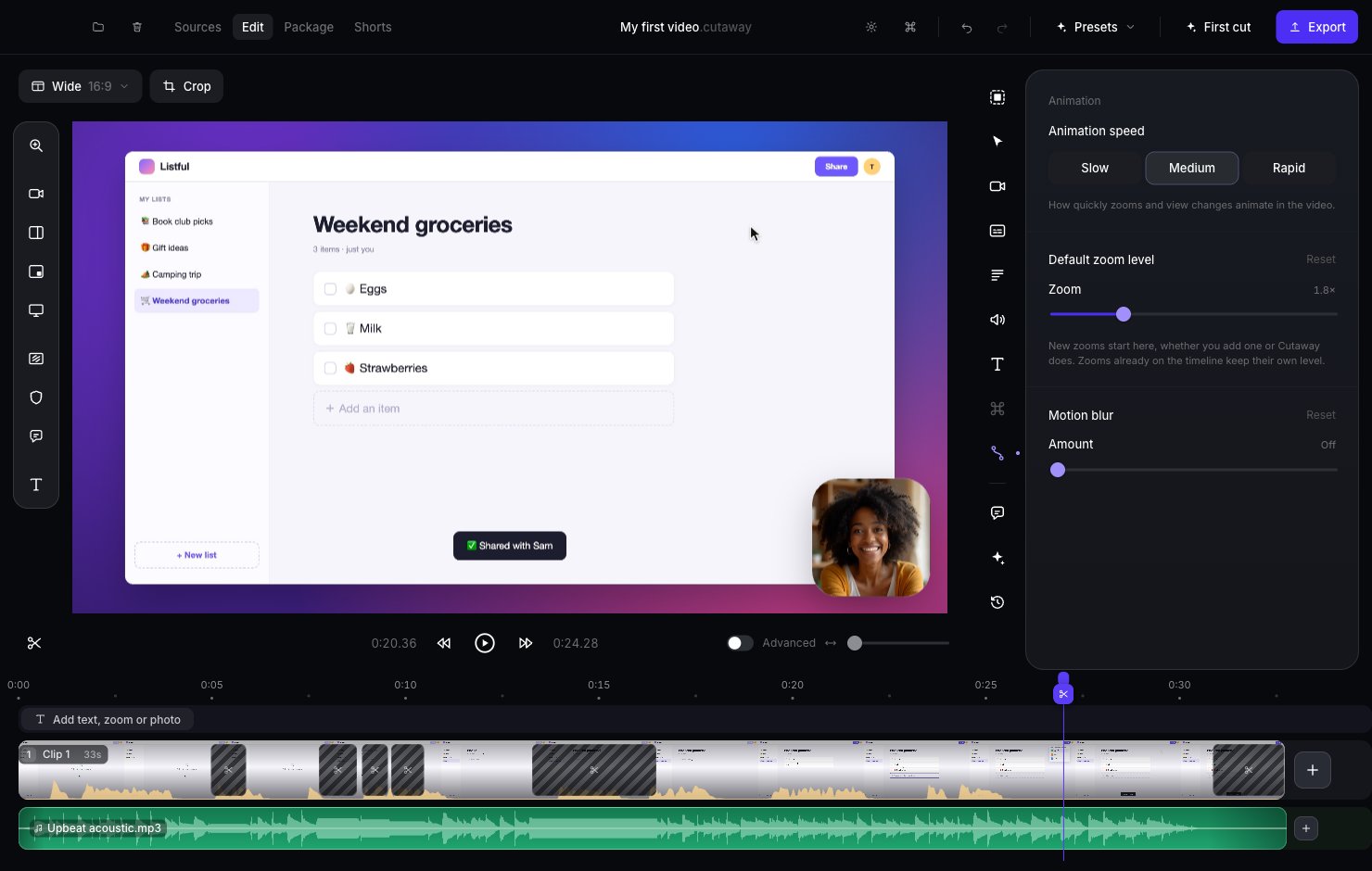
- Animation speed: how fast zooms and layout changes move. Slow, Medium or Rapid.
- Default zoom level: how far new zooms go in.
- Motion blur: a little blur while things move, so it looks smoother.